Create a New External Source
This page explains how to create a new external source in API Test.
Open the Form
- Open API Test
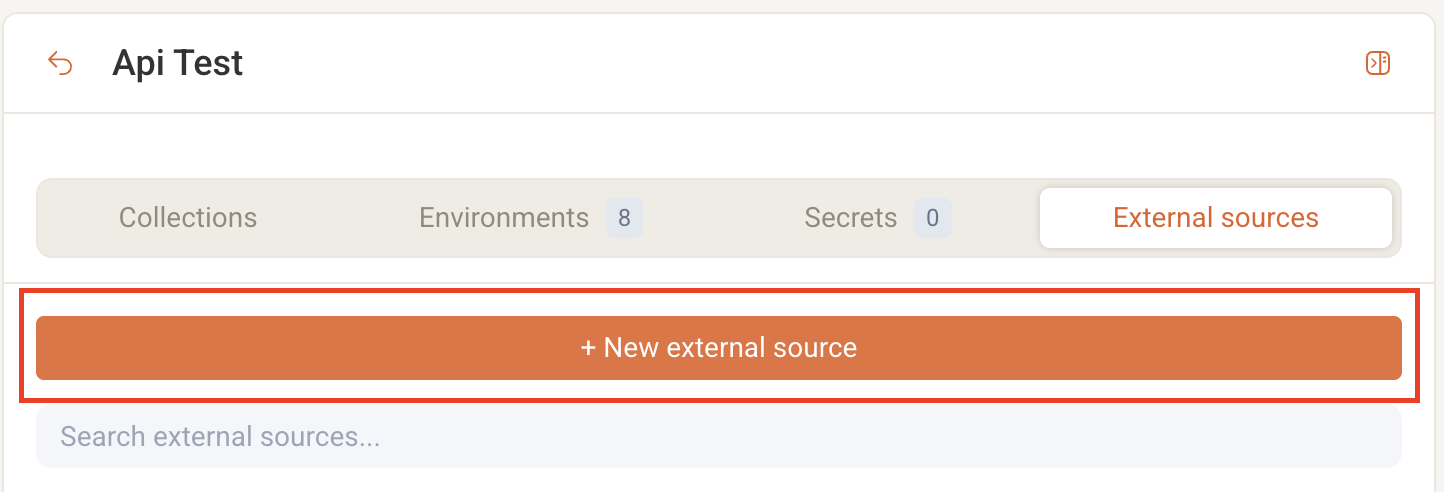
- Select the External sources tab.
- Select + New external source.
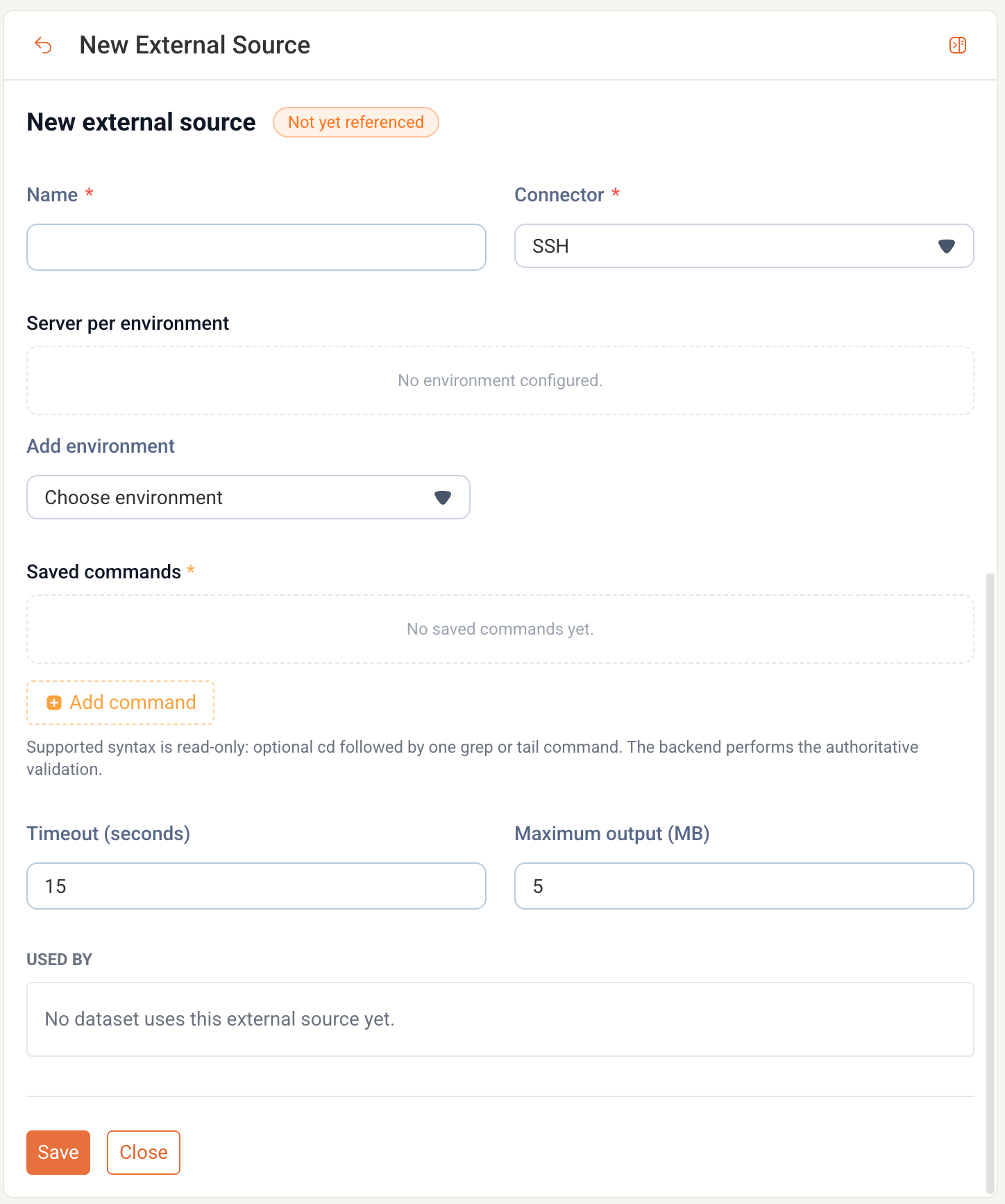
The New External Source form opens. Next to the form title, a Not yet referenced badge is shown, because no dataset uses the external source yet.
Fill In the Form
Fill in the following fields. Fields marked with * are required.
- Name — the name of the external source
- Connector — the connector type. Select it from the dropdown. The default is
SSH - Server per environment — the server of the external source for each environment. See Add a Server per Environment
- Saved commands — the commands the external source can run. See Add Saved Commands
- Timeout (seconds) — the default is
15 - Maximum output (MB) — the default is
5
The USED BY section lists the datasets that use the external source. For a new external source, it shows No dataset uses this external source yet.
Add a Server per Environment
Server per environment shows No environment configured. until you add an environment.
To add a server:
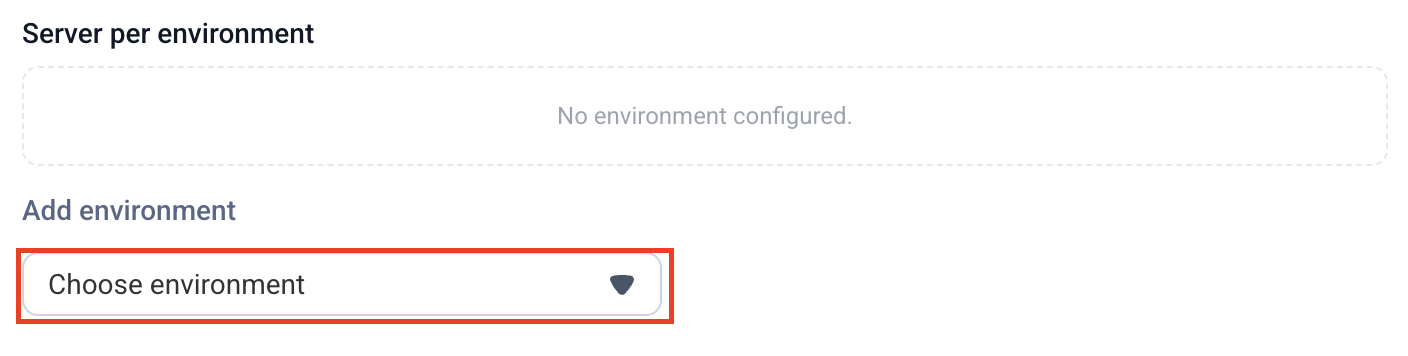
- In Add environment, select Choose environment and pick an environment from the dropdown.
- A card is added for the environment, named after it. Fill in the fields of the card.
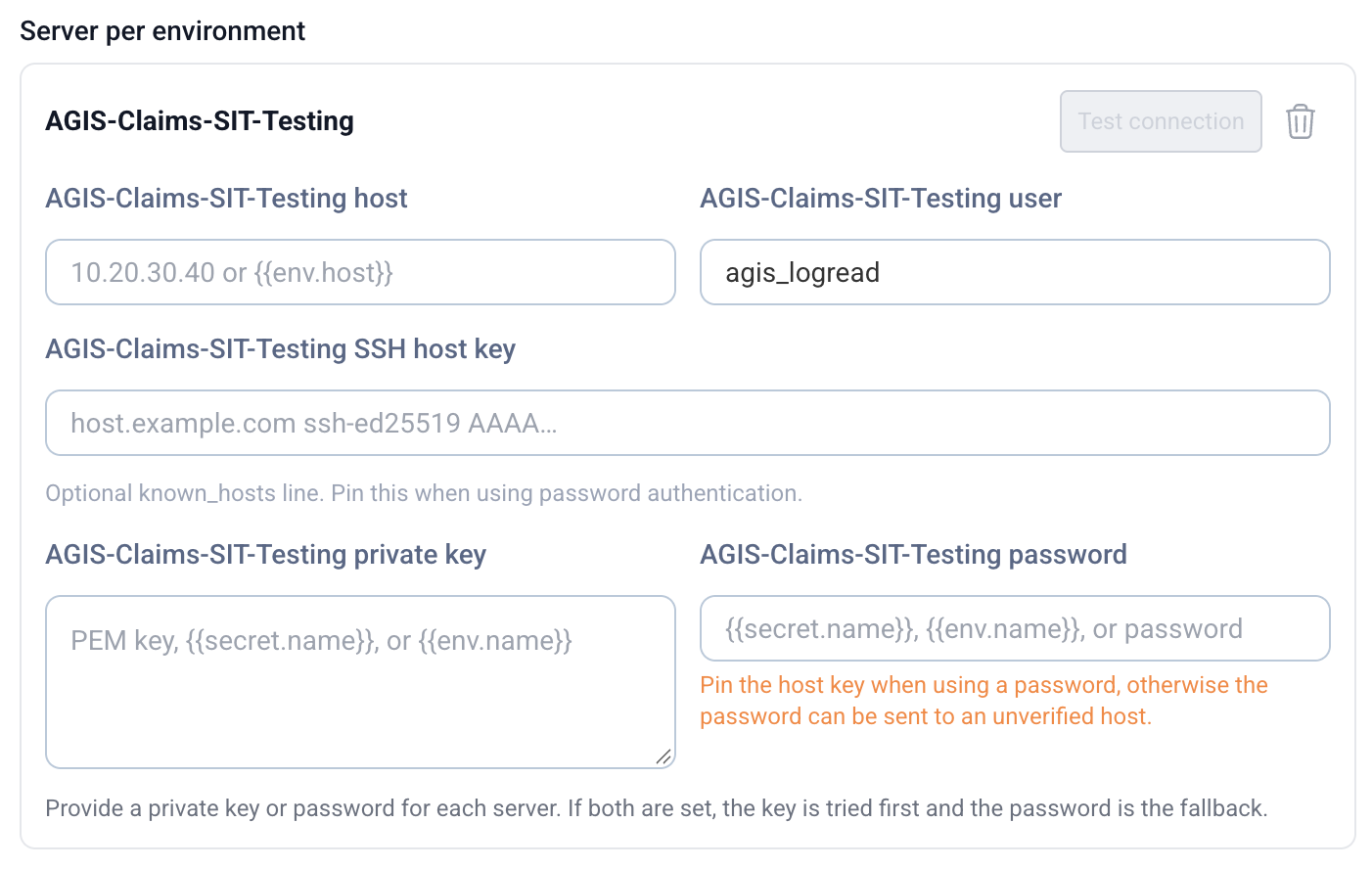
The card has the following fields:
- Host — the host of the server. You can enter an address such as
10.20.30.40, or a variable such as{{env.host}} - User — the user used to connect to the server
- SSH host key — an optional
known_hostsline, such ashost.example.com ssh-ed25519 AAAA…. Pin this when using password authentication - Private key — a PEM key, or a variable such as
{{secret.name}}or{{env.name}} - Password — a password, or a variable such as
{{secret.name}}or{{env.name}}
Below the fields, the form shows the following notes:
- Provide a private key or password for each server. If both are set, the key is tried first and the password is the fallback.
- Pin the host key when using a password, otherwise the password can be sent to an unverified host.
The card also has the following buttons at the top right:
- Test connection — checks the connection to the server of that environment
- Delete button — removes the environment from the external source
To add more servers, select another environment in Add environment.
Add Saved Commands
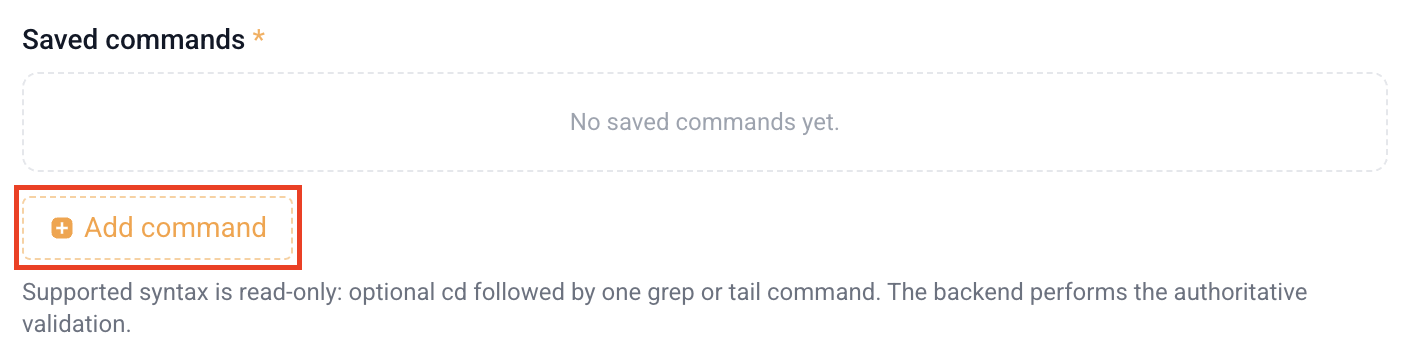
Saved commands shows No saved commands yet. until you add a command. At least one saved command is required.
Select Add command to add a command. A COMMAND 1 card is added with the following fields:
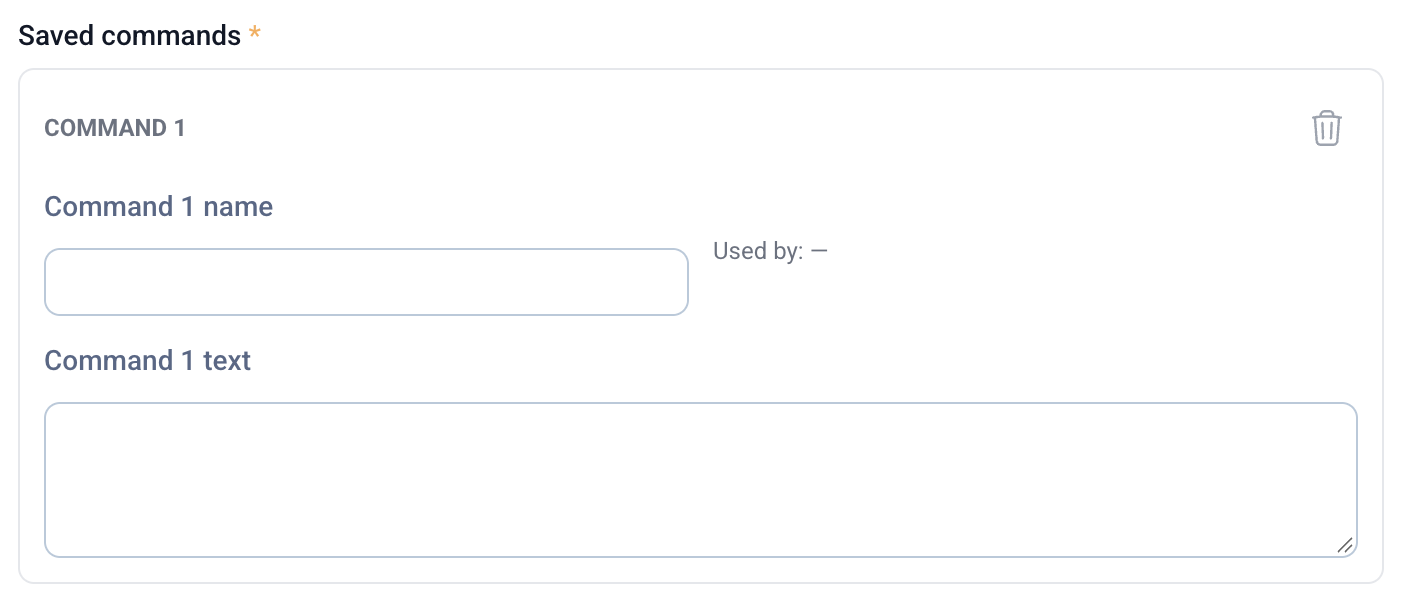
- Command 1 name — the name of the command. Next to it,
Used by:shows how many use this command. It shows—when nothing uses it yet - Command 1 text — the text of the command
Select the Delete button at the top right of the card to remove the command.
The form explains the supported syntax below Add command: it is read-only, with an optional cd followed by one grep or tail command. The backend performs the authoritative validation.
Save the External Source
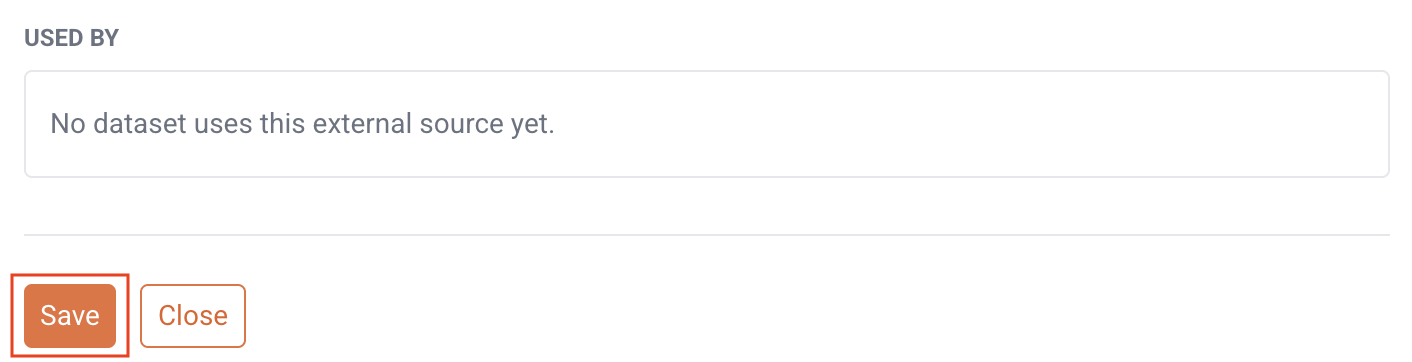
Select Save at the bottom of the form to save the external source. Select Close to close the form.